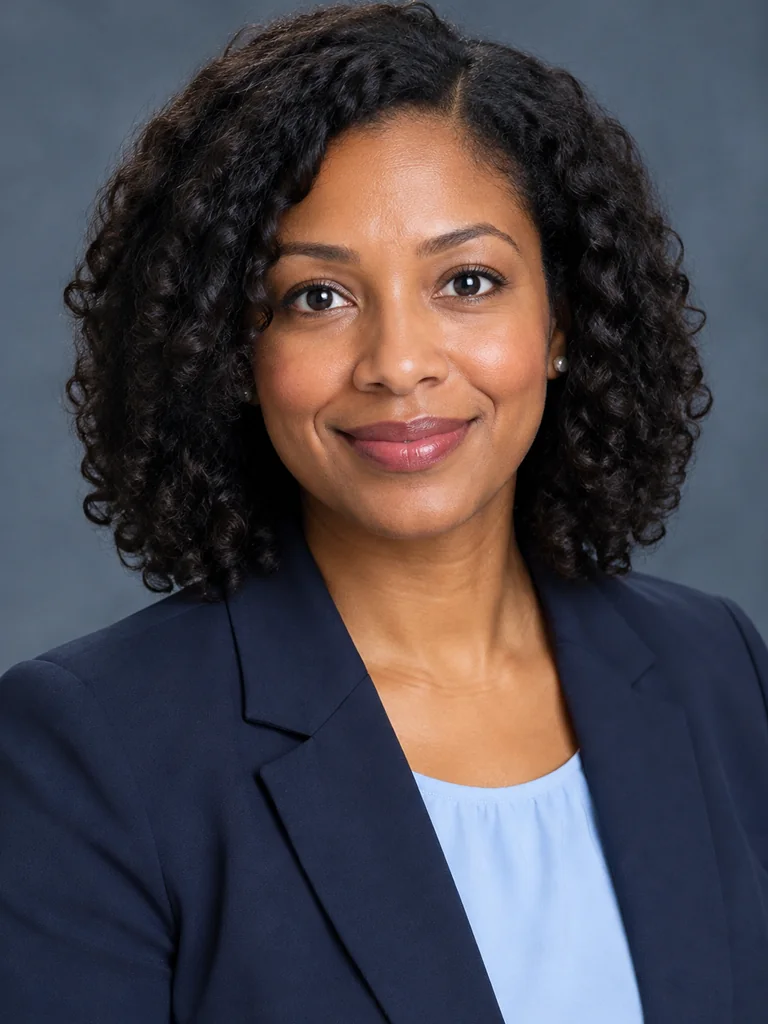
Start with a clear photo of yourself, choose a look that suits where you will use it, then compare each generated portrait with the original.
Create a professional headshotChoose a clear reference photo
Use a well-lit photo with one clearly visible face. Keep your eyes, hairline and chin visible, and avoid strong filters, motion blur or a face hidden by hair. A sharper reference makes it easier to compare the result with your actual appearance.
- Upload JPG, PNG, WebP or HEIC, up to 20 MB.
- Use a photo of yourself rather than a group photo or a screenshot of a small avatar.
Match the look to the occasion
Choose your profession or a general professional look, then adjust the outfit, background and expression. Keep the original outfit if it already fits your purpose. A company directory, a speaker biography and a creative portfolio may call for different levels of formality.
- Choose a square profile photo or a vertical resume portrait for a single image.
- The general four-photo career set includes a formal portrait, a close-up headshot, a waist-up standing portrait and a full-body standing portrait, with consistent outfit and background choices. Industry sets include a media portrait in place of the full-body photo.
Review every preview
Generation starts when you choose Generate. Compare the preview with your original, including your face shape, age, hair, glasses and head coverings. Check teeth and mouth shape when smiling, and inspect hands and body proportions in wider portraits. In a full-body photo, make sure both feet and shoes are fully visible. Automatic image checks do not verify identity.
- Redo any image that changes recognizable features or introduces distracting details.
- For a set, review each composition separately rather than approving it from a small thumbnail.
Download and check the final crop
Review the preview before purchasing a download. Use the available JPG or set download after completing the tool's review and purchase steps. Check the crop again where you will upload it, especially for circular profile pictures. Export sizes are suggestions; follow the destination's own instructions.
- Keep some room around your head so a platform crop does not cut into your hair or chin.
- For an official identity document, use its specific photo requirements and check whether AI editing is allowed.