YOUR NEXT AUDITION
Arabesque on pointe
Generate full-body dance photos with a plain background and a choice of poses. Review each image before preparing your audition set.
- Start with one photo
- No account needed
- JPG download
UNCSA · Ballet (on pointe) · Choose a pose
AI-generated headshot example
Select at least one pose.
Read the school's photo instructions ↗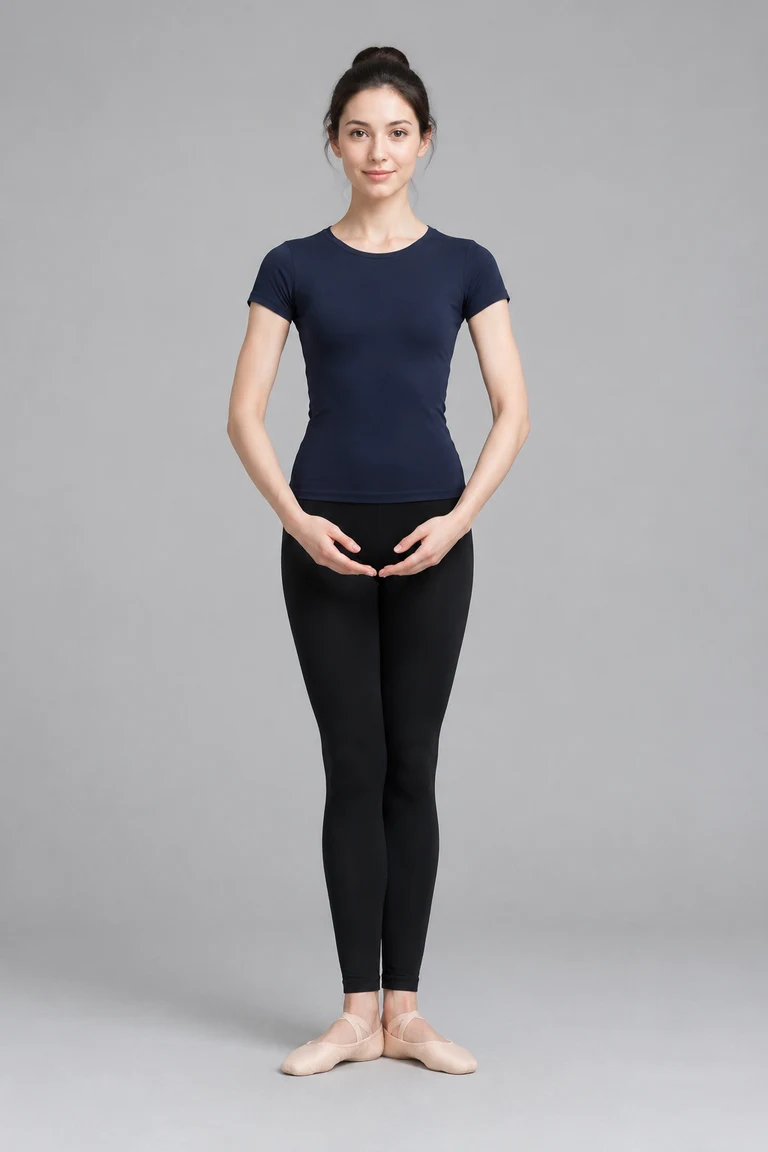
Your dance photo will appear here
Your dance photo is ready to review
Compare your face, body proportions, joints, hands, feet and clothing with the original. Check the selected pose against the school's instructions and example images. This is an AI-generated image; dance technique, body measurements, exact pose and acceptance are not verified. Submit only if the recipient allows AI-generated photos.
Check your browser's downloads if the image does not open.
Choose the photos you want to unlock. You can buy ready photos even if others failed.
Select at least one photo to continue.
Review the photos you want to buy · Review each photo before downloading the set. AI does not verify technique, anatomy or school acceptance.
From your photo to a ready-to-review result
Choose a clear photo
Use a recent, clear photo of one person with your full body, face, hands and feet visible. Leave space around every limb. Your original pose and outfit are selected by default.
Choose your settings
Keep your source pose, choose another position or select a school photo set. Each pose produces a separate image to review against the official example.
Compare and download
Check the result against your original, confirm it looks like you, and download the JPG.
Start with a clear full-body photo
Keep your face and every limb visible, with room around your hands and feet. Use even lighting and a simple background. The AI is instructed to preserve your identity and body proportions, but it can alter anatomy or technique. Compare the result carefully with your original.
Build the photo set your audition asks for
Generate a single pose or select a school photo set to create the required poses in one click. Each pose becomes a separate image. Check clothing, orientation, pose and submission instructions for your course. Check that the recipient permits AI-generated photos before using a result in an application.
Find audition headshot requirements →Before you generate
What size is the downloaded photo?
Portrait exports are 1536 × 2304 pixels (2:3); landscape exports are 2304 × 1536 pixels (3:2). Both are JPG. These are suggested export sizes, not official school specifications. Prepare the final file to the recipient's instructions.
Can I generate a new dance pose?
Yes. Keep the pose from your source photo, choose a listed dance position or generate a school photo set. Each pose is a separate image. The AI may make mistakes in joints, hands, feet, balance or alignment. It does not verify your technique, body measurements or an exact match to a school's pose example.
Can I make my whole audition photo set at once?
Yes. Choose School photo set, select your school and generate the selected poses in one click. Each pose becomes a separate photo to review. For example, RCS lists five dance photos; UNCSA lists a shared front view plus a course-specific pose. A separate headshot may also be required.
Will it change my face?
The AI is instructed to preserve your facial features, age, skin tone and hair. It can still make mistakes. Compare every result with your original; identity matching is not automatically verified.
Will the school accept an AI-generated dance photo?
Check the current instructions for your course and ask the school if AI use is unclear. This tool does not verify acceptance or establish that a generated pose represents your actual technique. Use an original photograph if your recipient requires one.